> ## Documentation Index
> Fetch the complete documentation index at: https://docs.consensus.app/llms.txt
> Use this file to discover all available pages before exploring further.
# Connect a method from one field to another
> Bridge two disciplines in one thread: establish the limits in your field, find where they show up in another, map the gaps, and find collaborators.
Some of the best research comes from porting a method between disciplines, but first you have to learn what keywords the other field uses. Consensus figures out the connections for you. The example: a physicist working on ultrasound in heterogeneous materials looks for applications in medical imaging.
**You'll learn how to:**
1. Lay the foundation of a thread in your source field
2. Run a cross-domain search into a target field
3. Generate a research gaps matrix and find potential collaborators
## Step 1: Establish the source field
Open a thread on the core topic so Consensus has the foundation for the follow-ups.
```text theme={null}
Core limitations of ultrasound in heterogeneous materials.
```
Research Agent reads recent key papers and summarizes the core limitations.
## Step 2: Cross into the target field
```text theme={null}
Find the strongest medical imaging papers where tissue heterogeneity is a main
challenge for ultrasound.
```
Consensus works out the keywords the medical imaging literature uses, runs three parallel searches with different terms, and outlines the core areas and critical papers at the intersection.
## Step 3: Map the gaps
```text theme={null}
What research is missing in this field? Can you create a research gaps matrix
to show me?
```
Consensus loads the thread, runs additional searches across the subfields, and returns a topic × context matrix. In the example, in vivo, 3D, and real-time scenarios are poorly covered, and non-linear propagation and reverberation are mostly studied in simulation rather than patients.
## Step 4: Find collaborators
```text theme={null}
Who are co-authors that I could collaborate with here on non-linear and
reverberation-aware correction in vivo?
```
Consensus searches deeper on that specific topic and lists active researchers grouped by institution and sub-area.
The video description mentions convolutional neural networks and medical imaging; the recorded demo uses ultrasound physics and tissue heterogeneity.
## Threads keep the whole investigation together
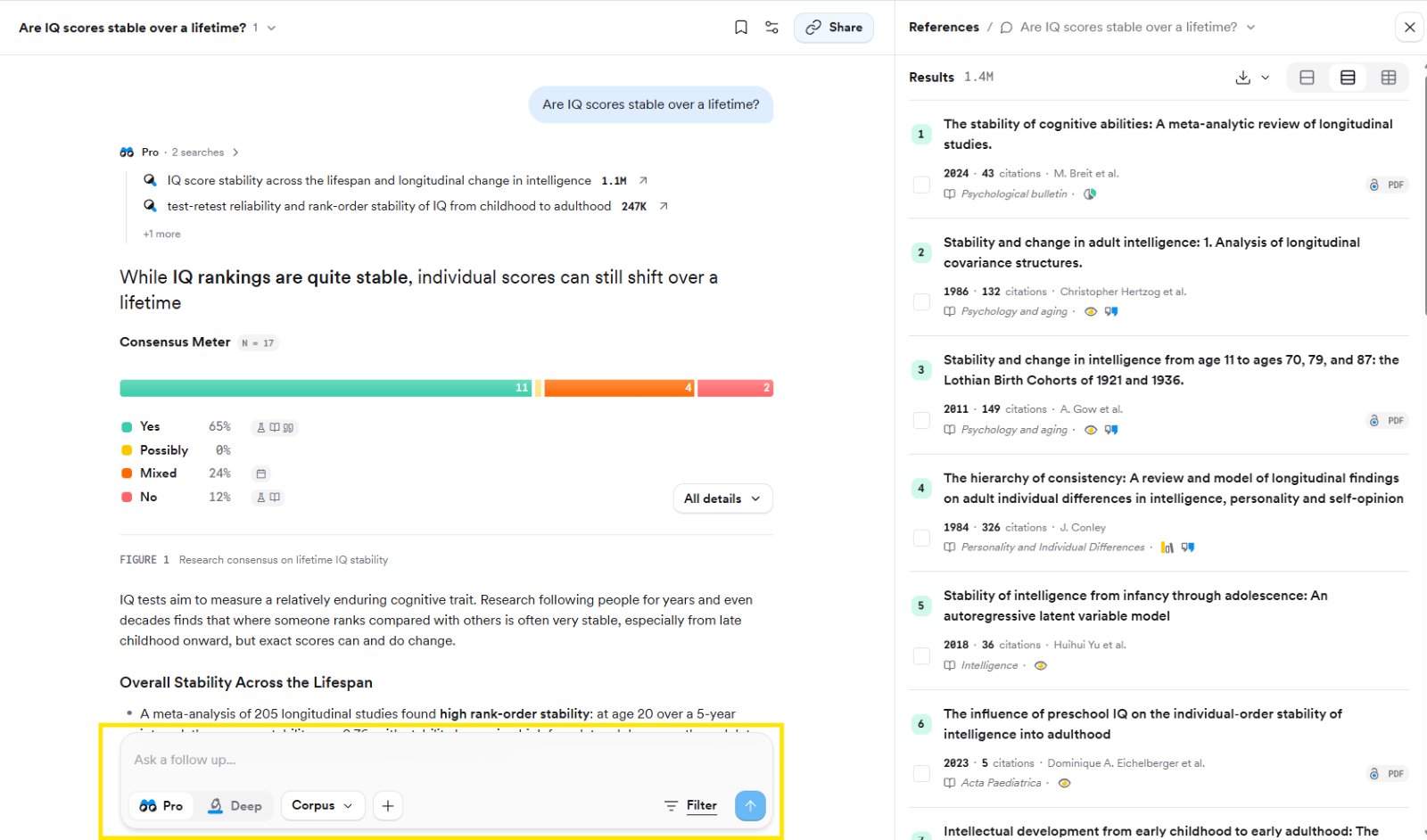
Each follow-up runs inside the same thread, so Consensus carries forward what it learned. Type in **Ask a follow up…** at the bottom of the page; you can apply filters to a follow-up too.
* Start a fresh thread with **+ New Thread** or **Cmd/Ctrl + K**.
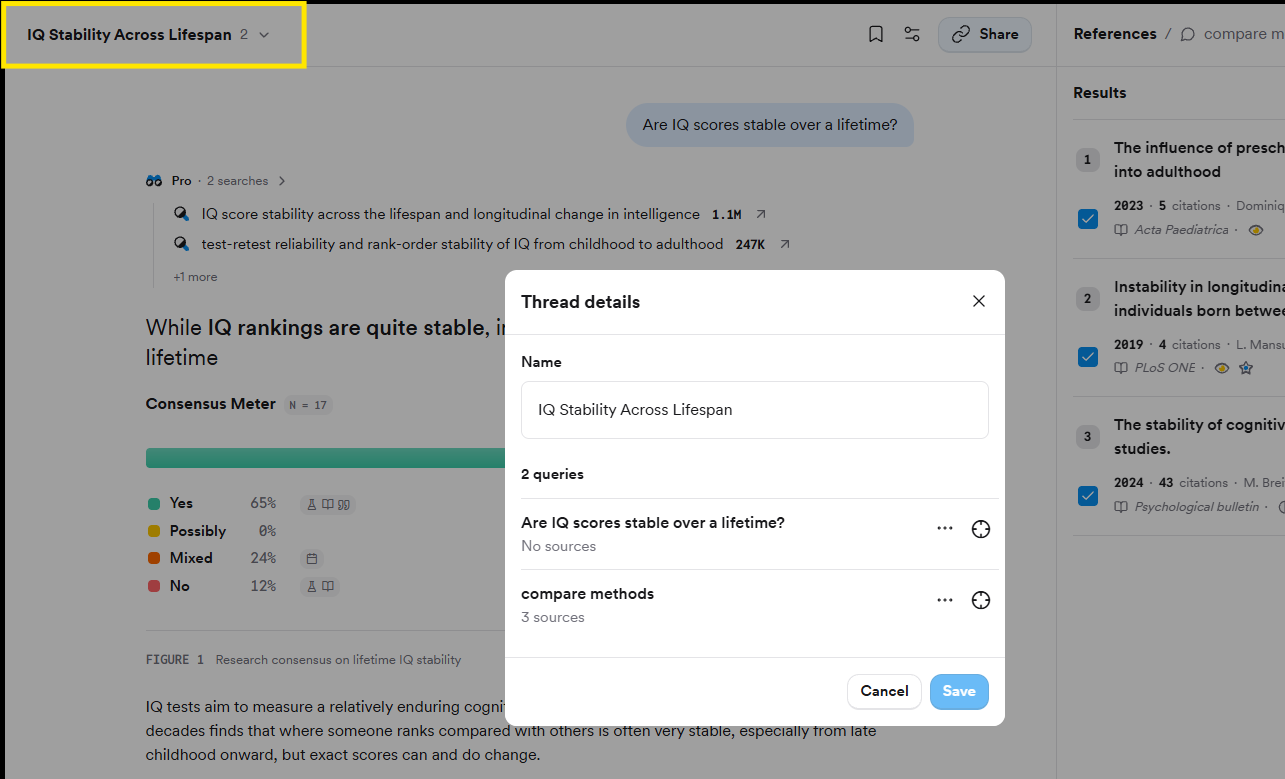
* Click the thread title to rename it, jump between queries with the target icon, or delete a query with the three-dot menu.
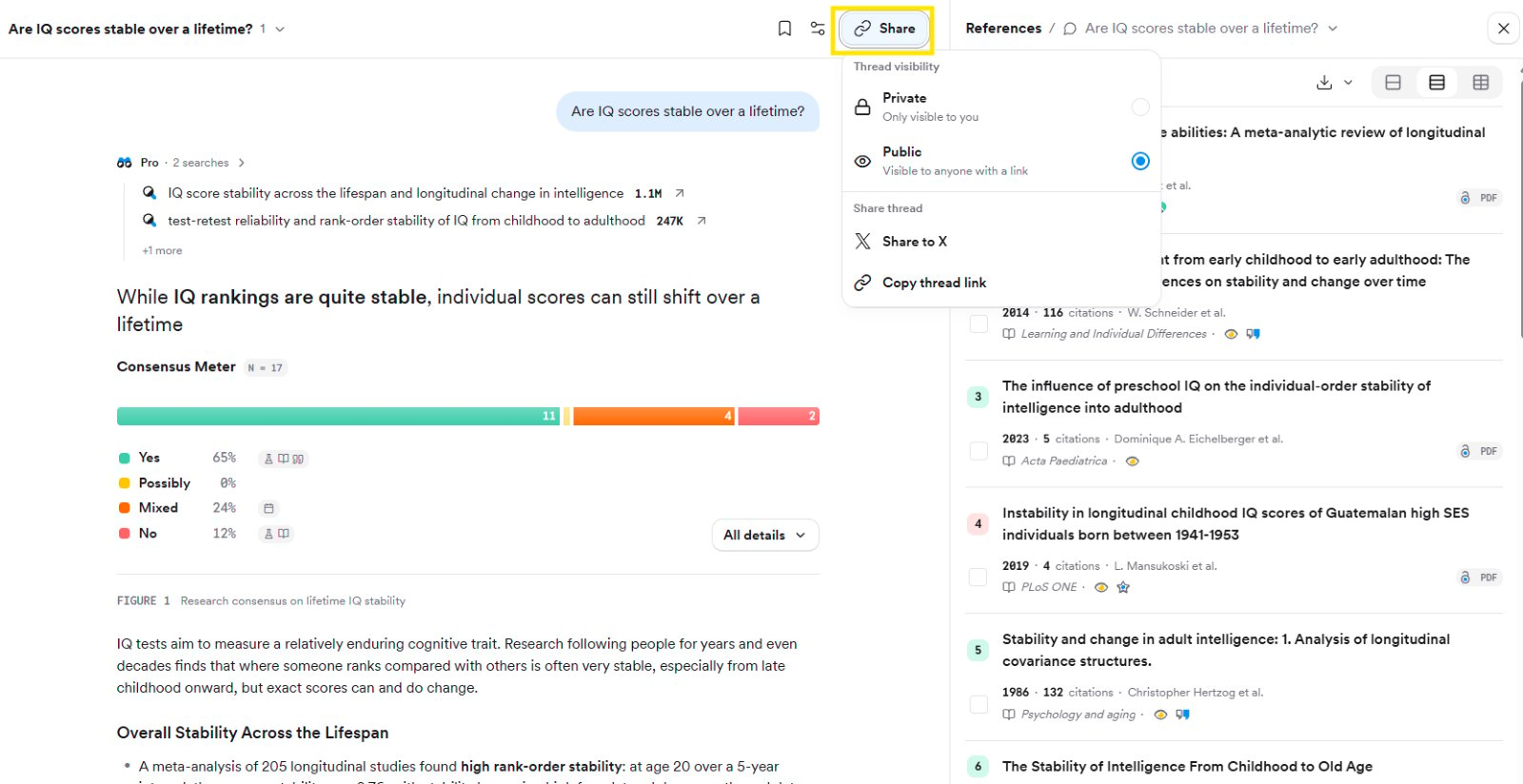
* Click **Share**, set visibility to **Public**, and **Copy thread link** to send the whole investigation to a collaborator.
## Related tutorials
 * Start a fresh thread with **+ New Thread** or **Cmd/Ctrl + K**.
* Click the thread title to rename it, jump between queries with the target icon, or delete a query with the three-dot menu.
* Click **Share**, set visibility to **Public**, and **Copy thread link** to send the whole investigation to a collaborator.
* Start a fresh thread with **+ New Thread** or **Cmd/Ctrl + K**.
* Click the thread title to rename it, jump between queries with the target icon, or delete a query with the three-dot menu.
* Click **Share**, set visibility to **Public**, and **Copy thread link** to send the whole investigation to a collaborator.
 ## Related tutorials