> ## Documentation Index
> Fetch the complete documentation index at: https://docs.consensus.app/llms.txt
> Use this file to discover all available pages before exploring further.
# Check a manuscript for missing citations
> Upload your manuscript and use Deep Search to find supporting and challenging studies, surface papers you missed, and do a final gut check before submitting.
Nothing is more embarrassing than a reviewer pointing out a paper you should have cited. This tutorial uploads a manuscript (on TIMP1) and asks Consensus to find what supports it, what challenges it, and what's missing.
**You'll learn how to:**
1. Upload a manuscript as an attachment
2. Run Deep Search to find supporting, challenging, and must-cite papers
3. Verify each finding at the exact quote in the source paper
## Step 1: Upload and ask
Click **Attachments › Upload papers** and select the manuscript. Toggle on **Deep** for the most thorough search, then ask:
```text theme={null}
Can you look through this manuscript? What are relevant studies that support or
challenge the findings? And what are papers that should definitely be cited
alongside the study?
```
Deep Search reads the manuscript, extracts the core concepts, and runs multiple differently-phrased searches. It reads the initial results, decides what follow-up searches to run (in the example: the publishing lab's other work and the protein's role in the cell life cycle), and even crawls the reference list of a key paper. It found 413 eligible papers and read 50.
## Step 2: Read the answer
The answer is organized as:
* **Core takeaway** — what the manuscript reports and its main arguments
* **Evidence strength** — claim by claim, with papers that support or refute each one
* **Studies that support the manuscript**
* **Studies that challenge or reframe it**
* **Papers that should be cited**
Click any claim to see the exact quotes from the source paper. Click **Open** to jump to that passage in the PDF.
## When to use it
Early in writing, to find areas worth investigating. Late in writing, as a gut check before submission or before sending to a supervisor.
Uploaded papers stay in **My Library** so you can attach them again later.
## Two ways to upload
* **From the search bar** — click **+**, then **Upload papers**, and ask your question in the same message.
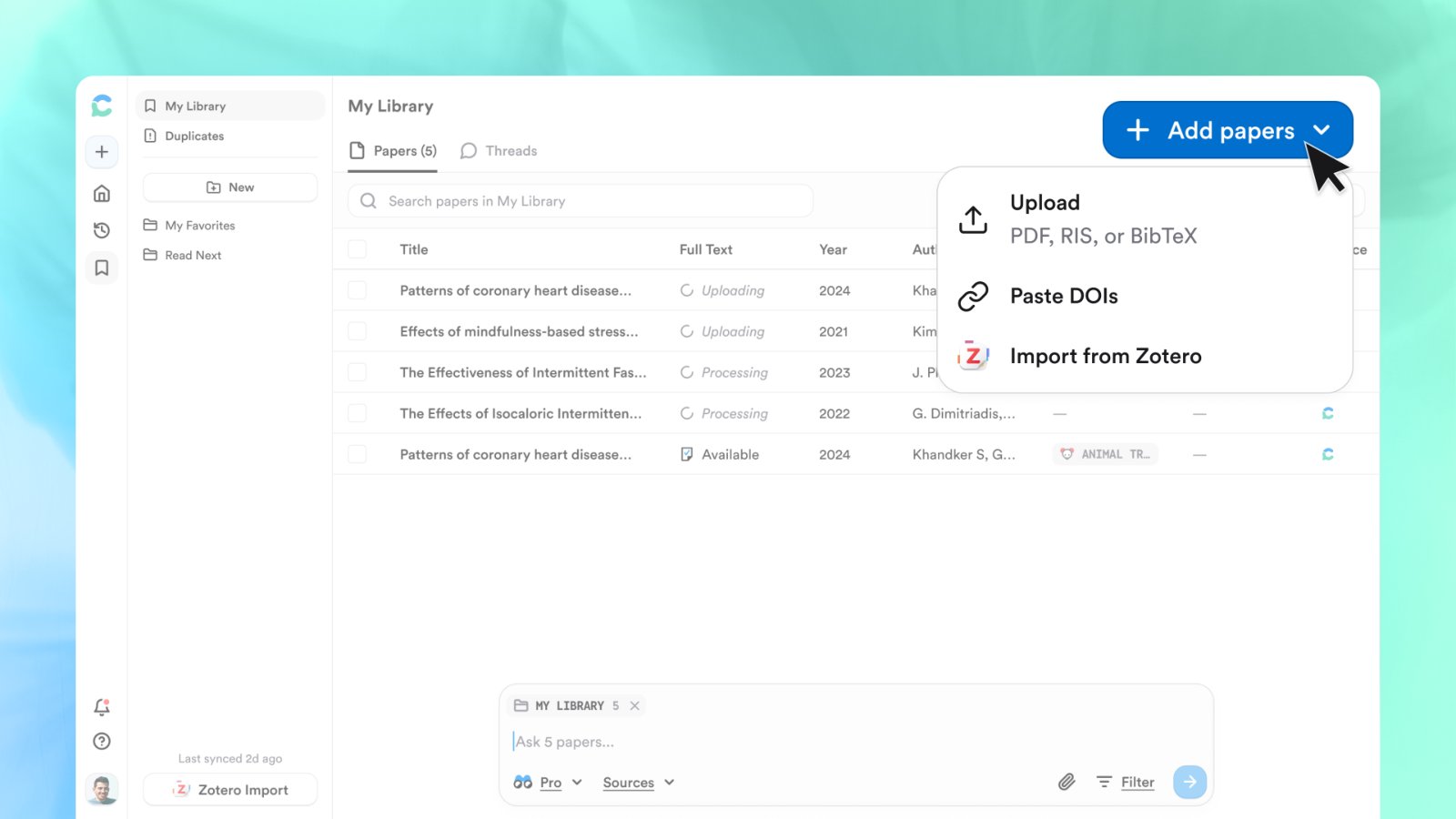
* **From My Library** — click **Add papers › Upload** to add up to 20 PDFs (or RIS/BibTeX files), then attach them to any search with **+**.
Uploads must be text-based PDFs under 50 MB. Manuscripts, drafts, dissertations, protocols, and internal reports all work, and they stay private to you.
## Triage the 400 eligible papers
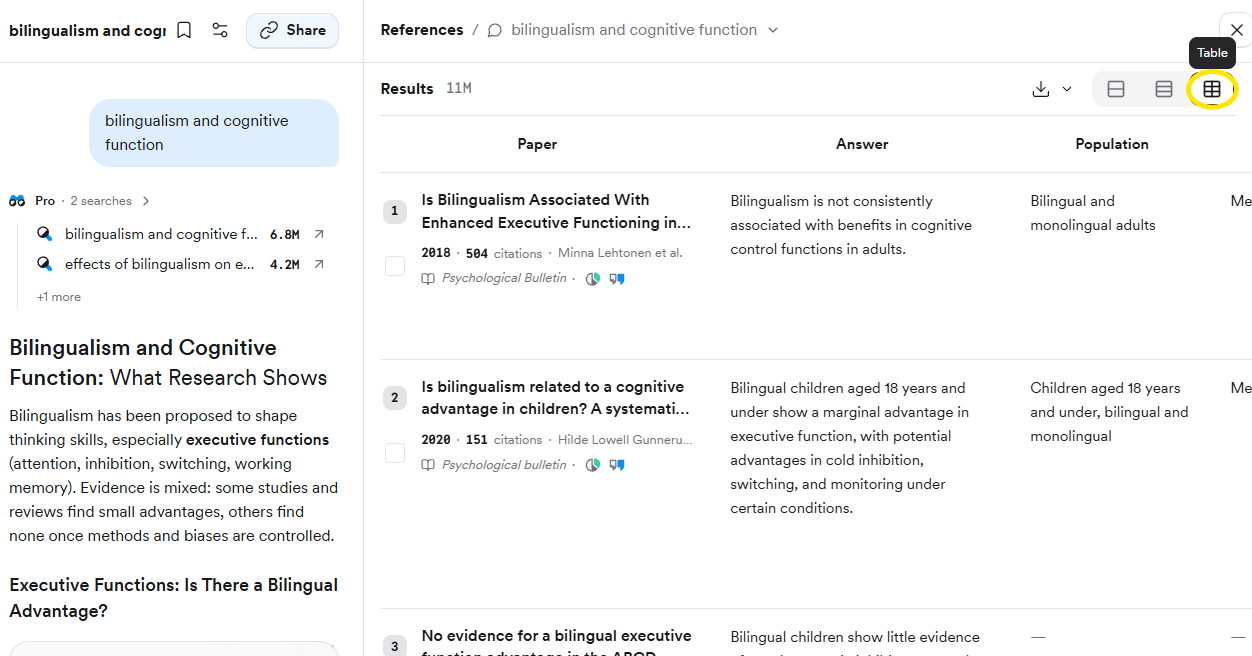
The answer cites the 50 papers it read, but the References panel holds every eligible paper. Switch to **Table** view to compare them by population, methods, results, sample size, and more, or export the list as CSV or RIS.
## Export the review
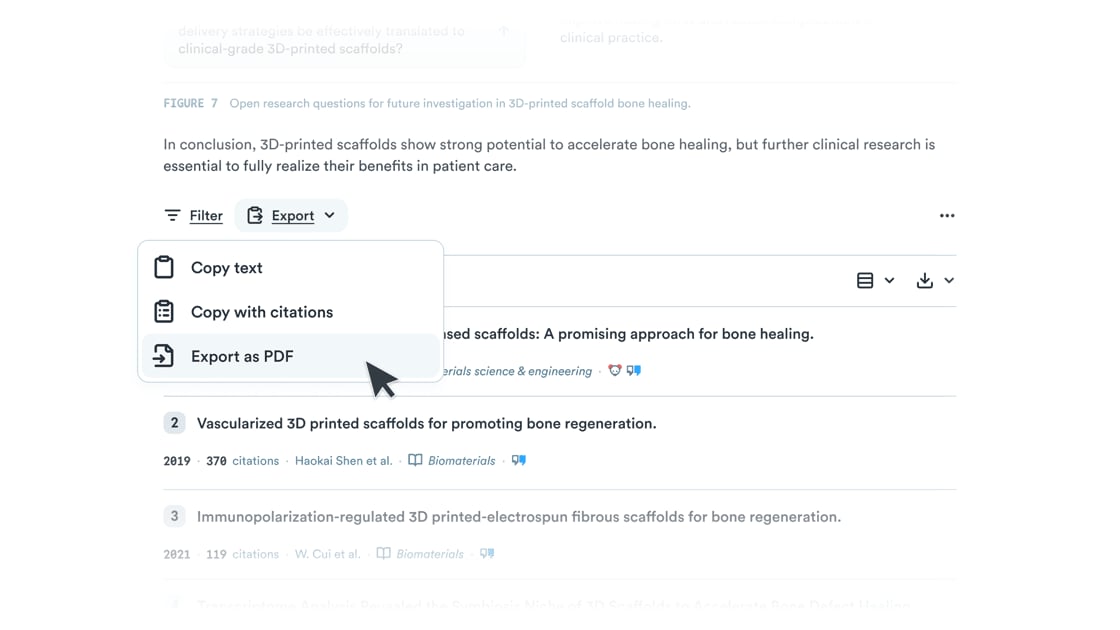
**Export** at the bottom gives you **Copy text**, **Copy with citations** in your reference style, or **Export as PDF**; tables and headings survive a paste into your writing tool.
How to plan a review, find and manage sources in Consensus, read critically, and draft with confidence.
## Related tutorials
 Uploads must be text-based PDFs under 50 MB. Manuscripts, drafts, dissertations, protocols, and internal reports all work, and they stay private to you.
## Triage the 400 eligible papers
The answer cites the 50 papers it read, but the References panel holds every eligible paper. Switch to **Table** view to compare them by population, methods, results, sample size, and more, or export the list as CSV or RIS.
Uploads must be text-based PDFs under 50 MB. Manuscripts, drafts, dissertations, protocols, and internal reports all work, and they stay private to you.
## Triage the 400 eligible papers
The answer cites the 50 papers it read, but the References panel holds every eligible paper. Switch to **Table** view to compare them by population, methods, results, sample size, and more, or export the list as CSV or RIS.
 ## Export the review
**Export** at the bottom gives you **Copy text**, **Copy with citations** in your reference style, or **Export as PDF**; tables and headings survive a paste into your writing tool.
## Export the review
**Export** at the bottom gives you **Copy text**, **Copy with citations** in your reference style, or **Export as PDF**; tables and headings survive a paste into your writing tool.