
Step 1: Split it by theme
Collections can be nested. Create a sub-Collection for each theme you found in Spot the main findings and themes: click the new-Collection button and pick your project Collection under Create in.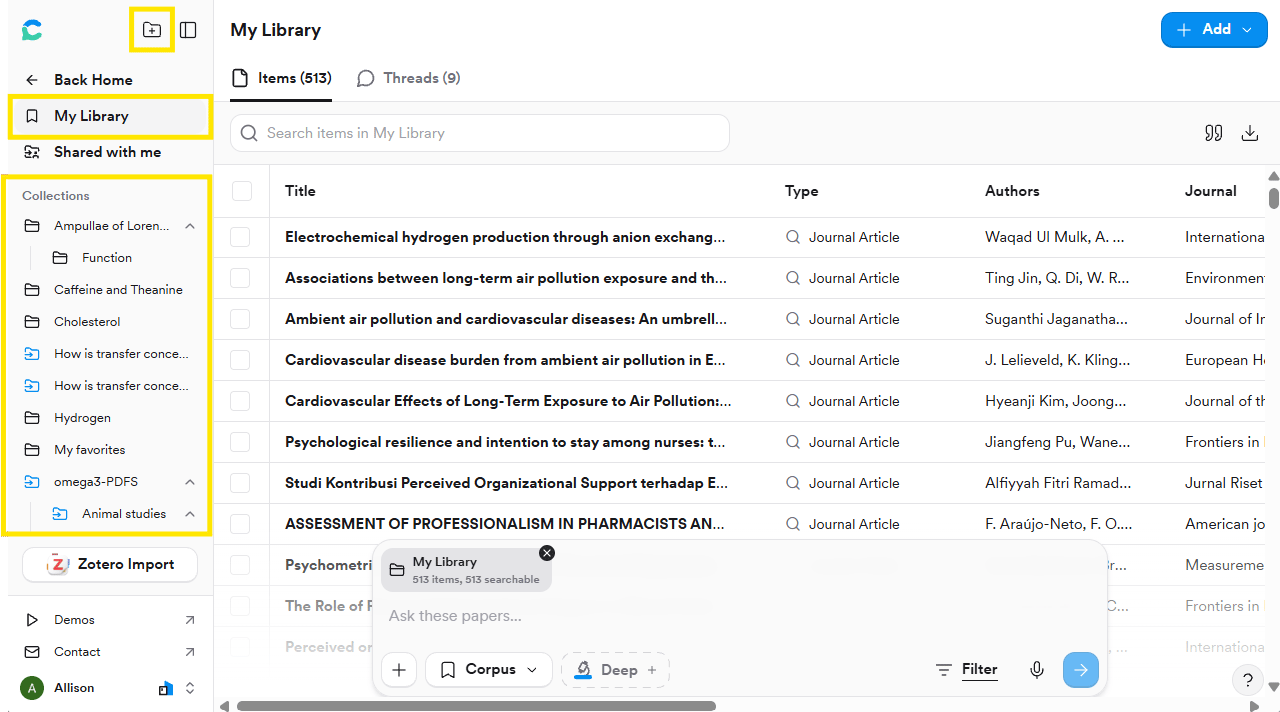
Collections and sub-Collections live in the left sidebar of My Library.
Step 2: Add papers from anywhere
Click + Add in the top right of My Library to:
- Upload PDFs, such as papers a colleague sent you
- Paste DOIs from a reading list
- Import from Zotero, if you already use it
Step 3: Ask questions of your Collection
Open the Collection and type in the search bar at the bottom. Consensus answers using only the papers in that Collection.Step 4: Share it with collaborators
1
Open the Collection
In My Library, click the Collection in the left sidebar. The Share button appears in the top right.
2
Share by email or link
Click Share. Type an email address under Invite via email to invite someone directly, or click Copy invite link to share a link that lets anyone who has it join as a viewer.
Try it on your topic
Split your project Collection into sub-Collections by theme, then share it with a collaborator.You should now have: an organised, shareable Collection that someone else can open and understand.
Go deeper: Zotero, export, and more
Go deeper: Zotero, export, and more
See Library for Zotero import details, file limits, exporting a bibliography or RIS file, and running a Deep Review over a Collection.