Internal reports and unpublished documents can live next to the published literature. This tutorial creates a Collection of market reports and asks a question that draws on both.
You’ll learn how to:
- Create a Collection and upload private documents
- Run a search that combines your documents with published research
- Share the Collection with a team
Step 1: Create a Collection and upload
Open My Library, create a new Collection (the example is called Economic reports), and upload your files. Peer-reviewed papers and internal documents both work. Consensus indexes each document so it understands what it’s about. Uploads are private, not shared with anyone, and not used to train models.Step 2: Ask a question that spans both
Start a new search:Step 3: Share with your team
Open the Collection and click Share. Invite people by email as a Viewer (can use the Collection in searches) or an Editor (can also add documents).For larger teams, see the Team plan on the pricing page, or contact Consensus for institutional setup.
What you can upload
Published papers, drafts, manuscripts, experiment proposals, dissertations, clinical protocols, private research reports, and other research documents. Up to 20 PDFs at a time, 50 MB each, text-based. RIS and BibTeX files import their references.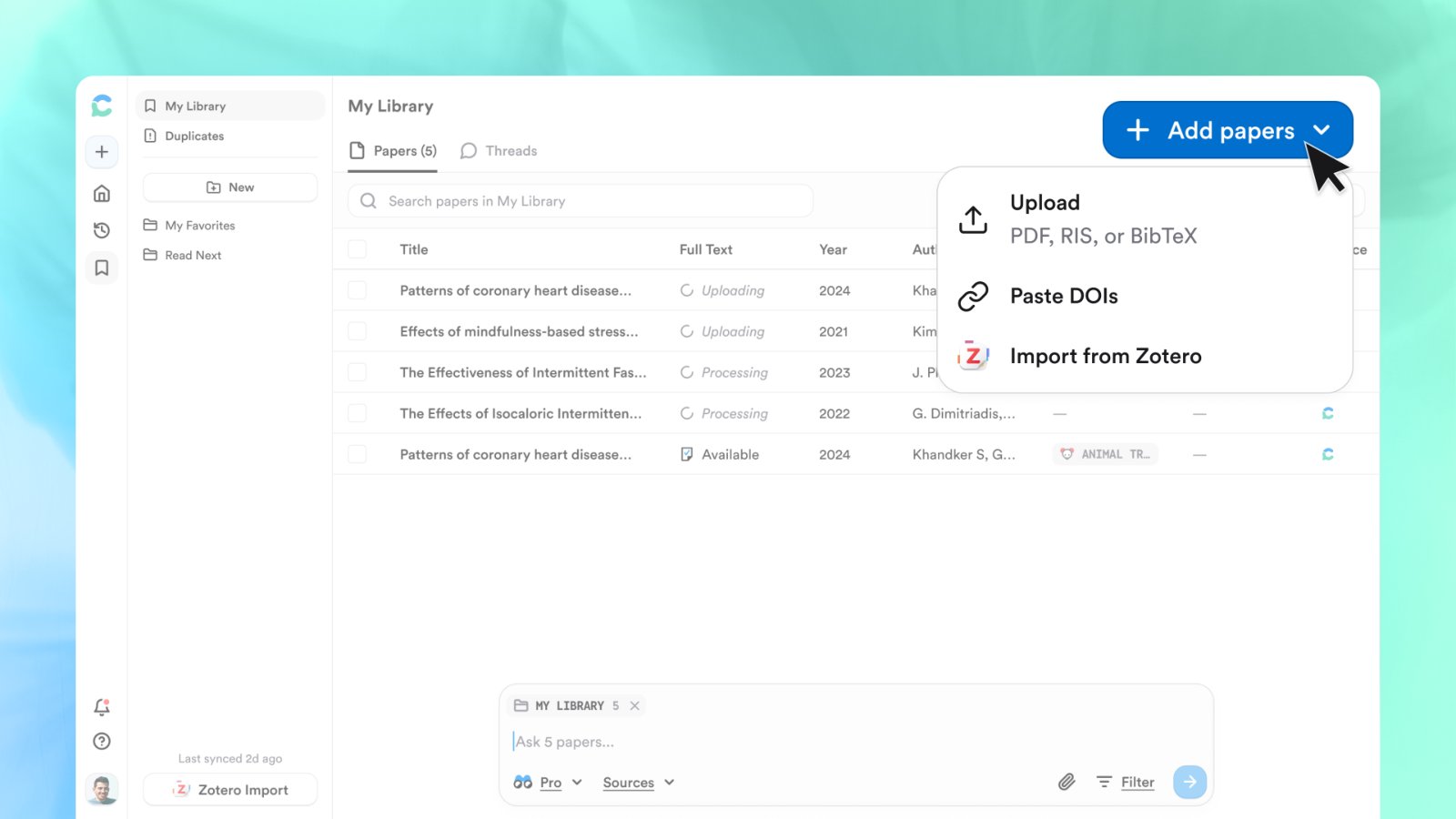
Pick exactly which documents to use
Click + in the search bar to open Add sources and tick specific documents or papers from your Library, or attach a whole Collection. Leave nothing attached and choose Corpus › All to search the full index alongside your Library, as in the example above.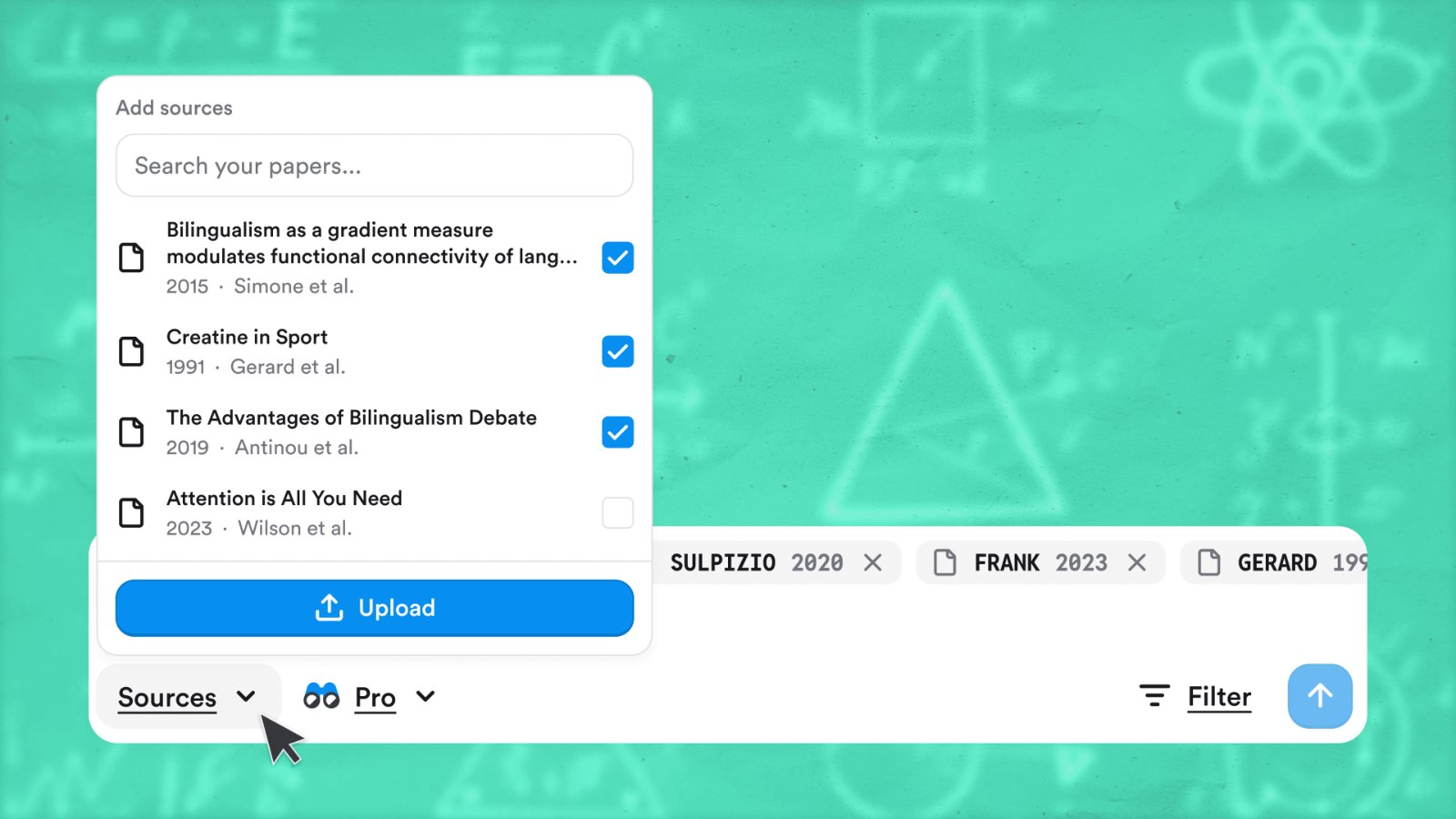
The Add sources picker: choose individual documents or upload new ones.
Sharing, in detail
- Invite by email or copy an invite link with a preset role.
- People without an account are prompted to create a free one.
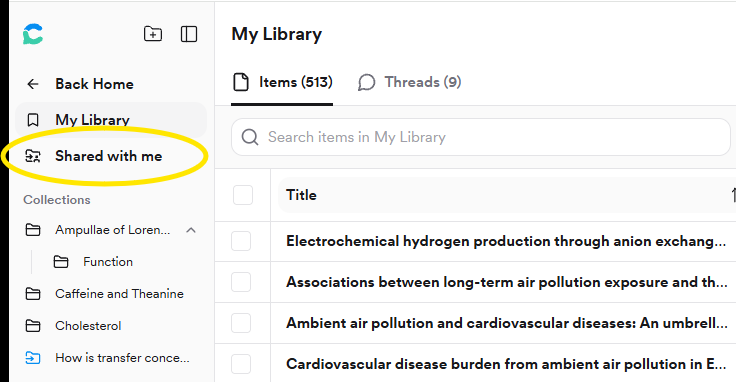
- Shared Collections show a person icon and an Added by column; recipients find them under Shared with me.
- Editors can remove papers from the shared Collection, but those papers stay in your own Library.
- Saved threads inside a Collection aren’t shared yet.