Comparing interventions across studies usually means hours of pulling values out of PDFs. This tutorial builds a side-by-side table in two searches, using RCTs on CBT, IPT, and digital interventions for adolescent depression.
You’ll learn how to:
- Run parallel searches across multiple interventions in one query
- Extract sample size, session count, follow-up duration, and effect sizes into a structured table
- Use the table to spot the strongest intervention and evidence gaps at a glance
Step 1: Search several interventions at once
Step 2: Ask for the exact columns you need
Step 3: Ask a paper about itself
Attach a paper to the search bar and ask a follow-up:If Consensus doesn’t have the full text, attach the PDF yourself or import your Zotero library. Uploads are private to you.
Table view: the built-in comparison
You don’t always need a prompt. Open References on the right and click the Table view button to extract study attributes side by side for every paper in the results: key takeaway, population, methods, results, outcomes, sample size, study count, duration, and country. Fields Consensus can’t extract are left blank.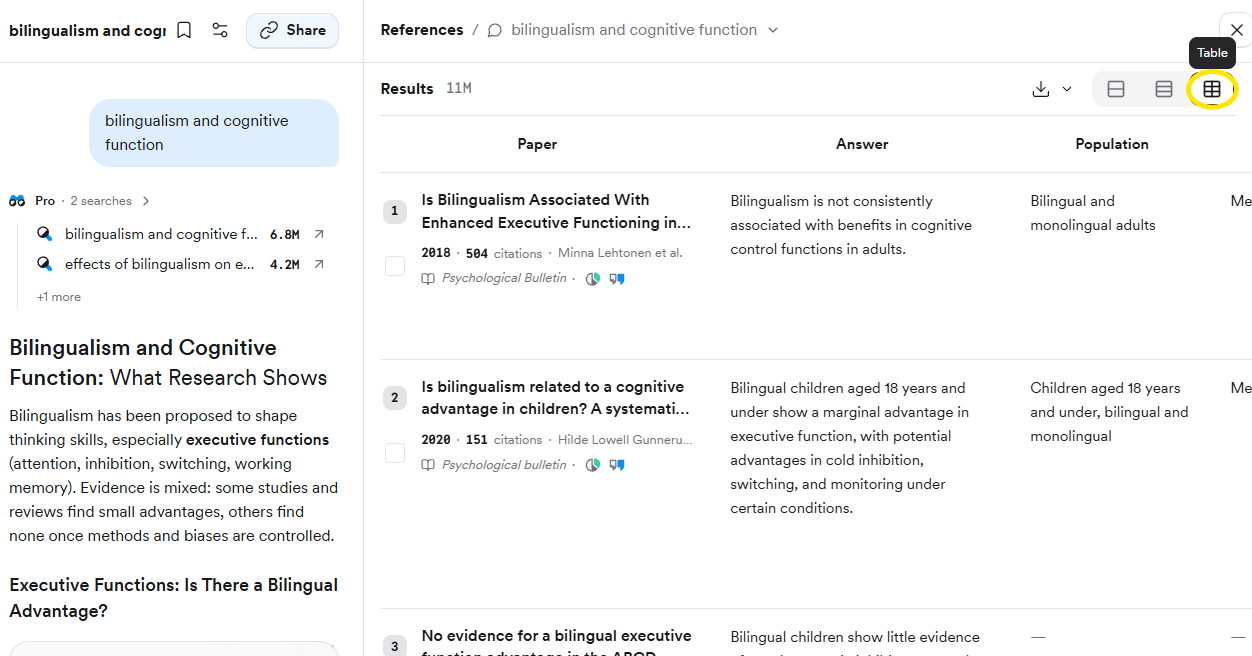
Table view, toggled from the buttons at the top right of the results.
Attach papers straight from the results
Tick the boxes next to specific papers in the results list and ask your question in the search bar at the bottom. Only those papers are used, and Consensus reads their full text where available.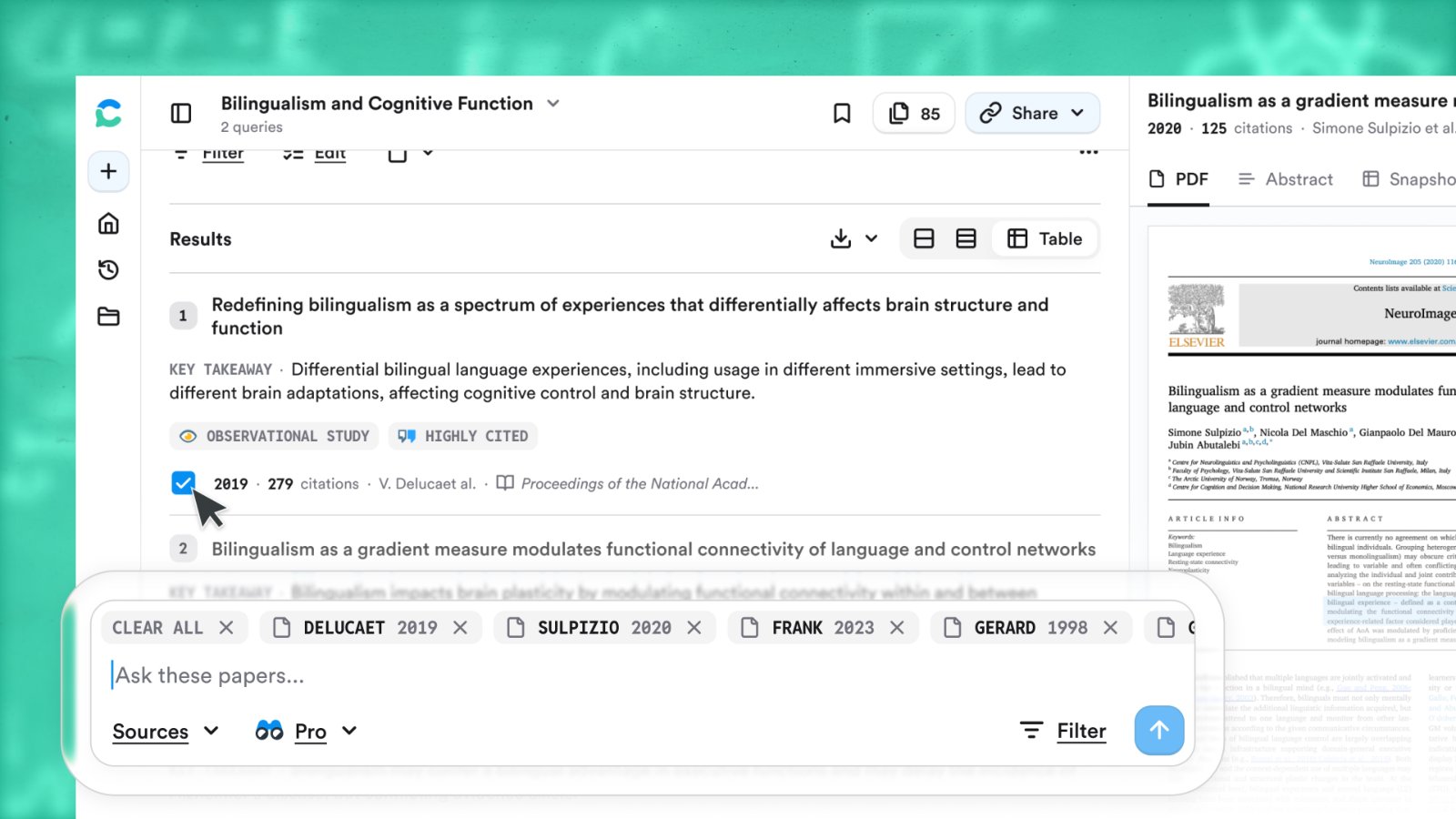
Selected papers appear as chips above the search bar.
Export the table or the papers
- The answer — scroll to the bottom and click Export for Copy text, Copy with citations (APA, MLA, Chicago, Harvard, LaTeX, AMA/Numeric), or Export as PDF. Tables survive a paste into Word, Docs, Notion, or Obsidian.
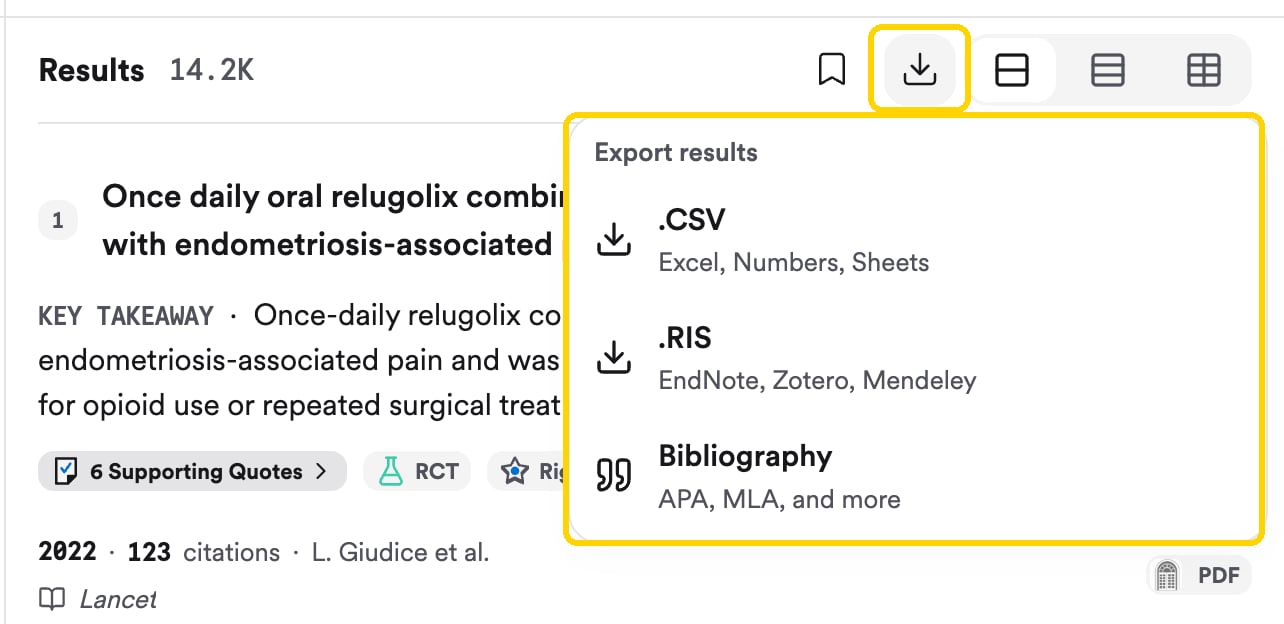
- The papers — click the download arrow at the top of the results for CSV, RIS (EndNote, Zotero, Mendeley), or a Bibliography.