
Nothing is more embarrassing than a reviewer pointing out a paper you should have cited. This tutorial uploads a manuscript (on TIMP1) and asks Consensus to find what supports it, what challenges it, and what’s missing.
You’ll learn how to:
- Upload a manuscript as an attachment
- Run a Deep Review to find supporting, challenging, and must-cite papers
- Verify each finding at the exact quote in the source paper
Step 1: Upload and ask
Click Attachments › Upload papers and select the manuscript. Toggle on Deep for the most thorough search, then ask:Step 2: Read the answer
The answer is organized as:- Core takeaway — what the manuscript reports and its main arguments
- Evidence strength — claim by claim, with papers that support or refute each one
- Studies that support the manuscript
- Studies that challenge or reframe it
- Papers that should be cited
When to use it
Early in writing, to find areas worth investigating. Late in writing, as a gut check before submission or before sending to a supervisor.Two ways to upload
- From the search bar — click +, then Upload papers, and ask your question in the same message.
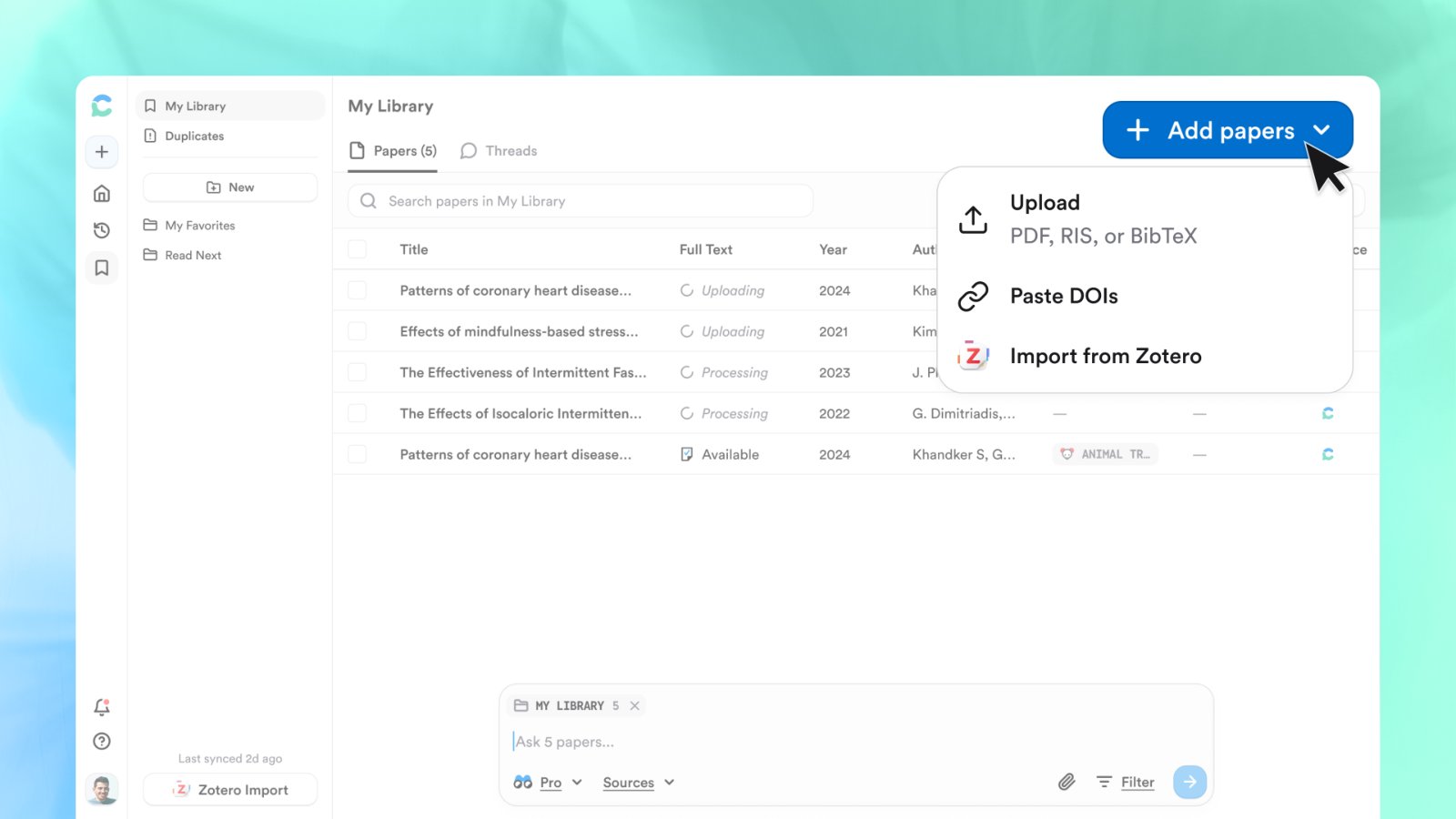
- From My Library — click + Add › Upload to add up to 20 PDFs (or RIS/BibTeX files), then attach them to any search with +.
Triage the 400 eligible papers
The answer cites the 50 papers it read, but the References panel holds every eligible paper. Switch to Table view to compare them by population, methods, results, sample size, and more, or export the list as CSV or RIS.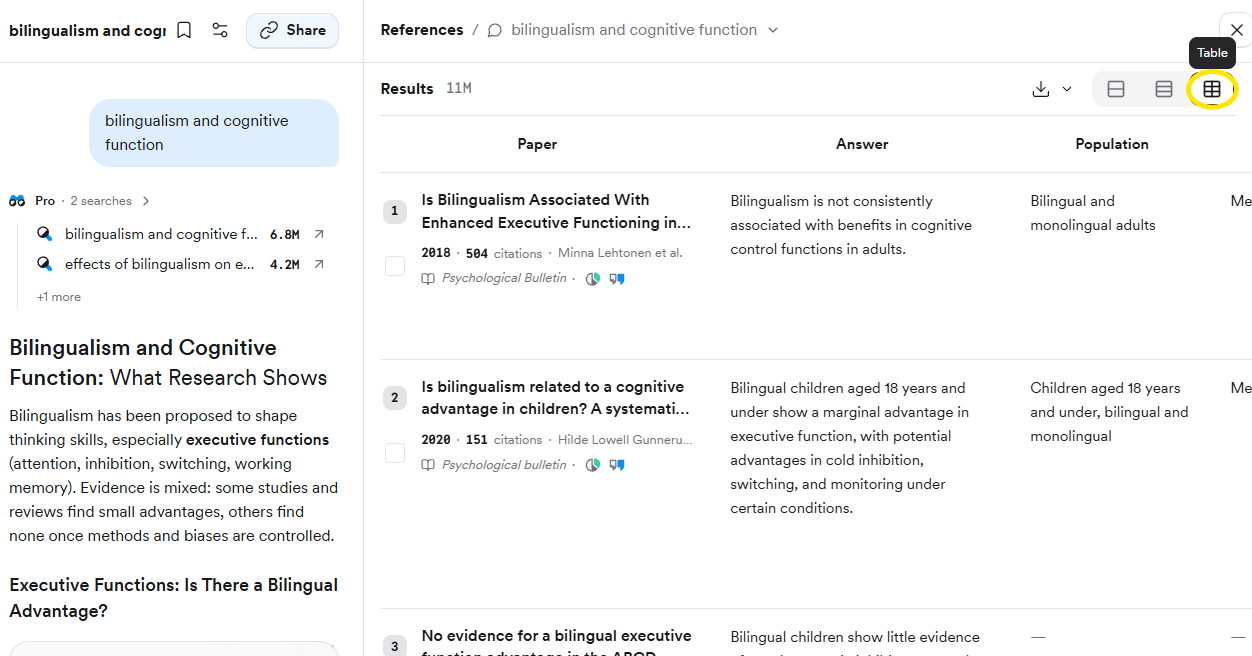
Export the review
Export at the bottom gives you Copy text, Copy with citations in your reference style, or Export as PDF; tables and headings survive a paste into your writing tool.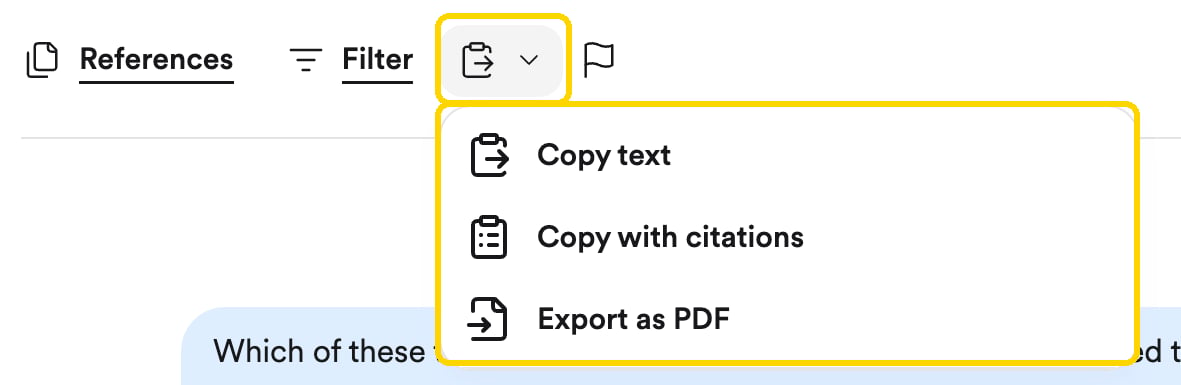
Writing literature reviews with AI
How to plan a review, find and manage sources in Consensus, read critically, and draft with confidence.