
Reviewers will challenge your sample size, your novelty claim, and your study design. Run that critique yourself first. The example uses a ~70-page grant on progesterone and muscle protein synthesis.
You’ll learn how to:
- Upload a grant as an attachment
- Use a Deep Review to find similar studies and compare designs
- Validate your effect size and sample size against comparable trials
Step 1: Upload the grant and ask for a comparison
Click Add attachment in the search bar and upload the grant PDF. Toggle on Deep, then ask:Step 2: Critique the statistics
Privacy and sharing
Uploads are private and aren’t used to train models. To work with a lab, open My Library, put the grant and shortlisted papers in a Collection, and click Share to add collaborators.Uploading from the search bar
Click + in the search bar, choose Upload papers, pick the file, then type your question. The upload lands in My Library too, so you can attach it again later. Text-based PDFs up to 50 MB; scanned PDFs can’t be processed.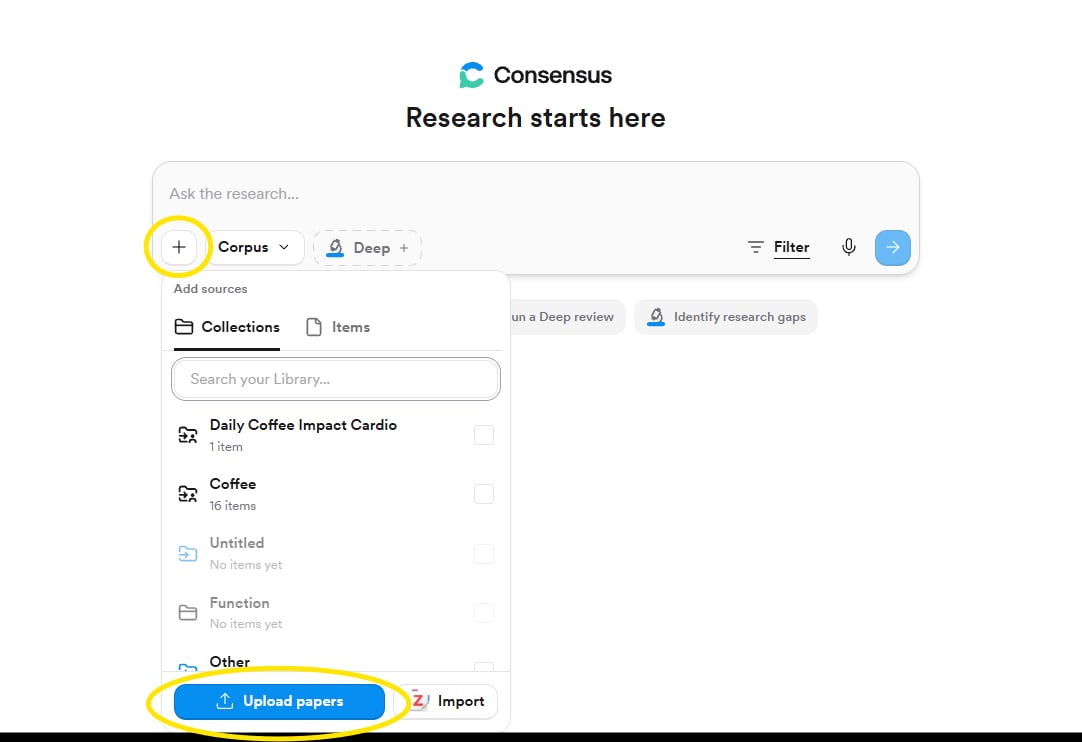
Watch the plan as it runs
The Deep Review panel shows every phase and search, with counts of papers identified, screened, eligible, and included. It’s the fastest way to see whether Consensus understood the grant’s core question.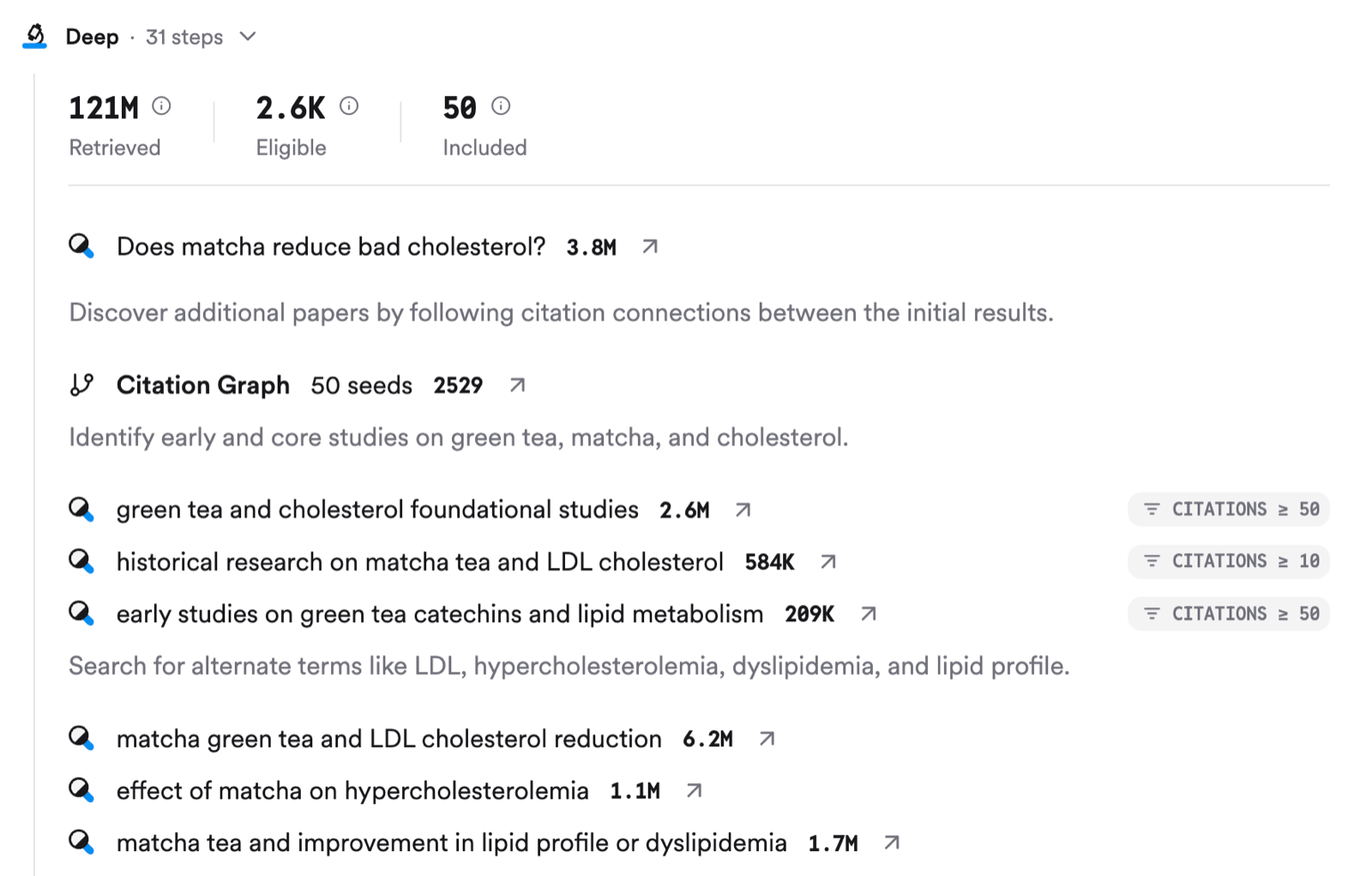
Cite and export
Click the thread settings button at the top of the page to choose a Default export format (APA, MLA, and others). Then the export button under the report gives Copy text, Copy with citations, or Export as PDF.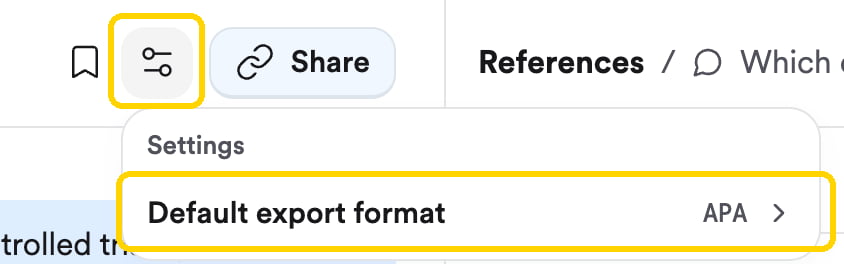
The default export format lives in thread settings.
Share with your lab
Open the Collection in My Library and click Share. Invite by email or copy an invite link; choose Viewer (can read and run searches on the Collection) or Editor (can also add and remove papers). Anyone you invite can see uploads inside the Collection.
Consensus for grant writing
A full guide with sample prompts for each section of a proposal: background and significance, the gap, rationale, methods, outcome measures, and impact.